Convert PDF to Word Online — PDF to .docx for Free

Convert any PDF into an editable Word document (.docx) directly in the browser. Choose between text conversion (editable content) or layout conversion (identical appearance to the original). Free, no account, no server upload.

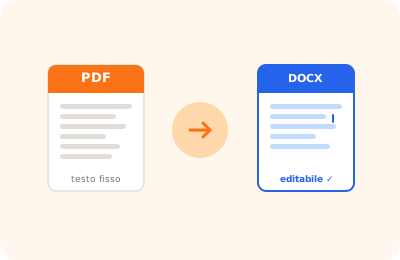
PDF to Word conversion illustration: PDF icon transformed into an editable Word .docx document

Drag the PDF to convert to Word here

or drag the file here

100% private
Instant
Free

or open the full PDF editor for annotations, signatures and much more.

How it works

Upload your PDF

Select or drag the PDF to convert. The file is processed locally, without uploading to any server.

Choose the conversion type

"Word text" for an editable .docx; "Word layout" for a document with an appearance identical to the original.

Download the .docx

The Word file is generated in seconds and downloaded directly to your device, ready to open in Word or Google Docs.

Why OnlinePdfEditor

100% Private

Everything runs in the browser via WebAssembly. Your PDF is never sent to any server.

Instant

No upload, no queue. Processing is local and completes in seconds even for large files.

Free, no tricks

No required account, no credit card, no watermark. Truly free.

Works everywhere

PC, Mac, iPhone, Android — just a modern browser. Safari, Chrome, Firefox or Edge.

Converting a PDF to Word is often necessary when you receive documents in PDF format but need to edit the content, update text or reformat the layout. OnlinePdfEditor offers two conversion modes: a standard one for PDFs with selectable text, and a "precise layout" mode that tries to preserve the visual structure of the original document.

Conversion happens in the browser via WebAssembly, without the file ever being transmitted to external servers. The resulting .docx file is compatible with Microsoft Word, LibreOffice and Google Docs.

PDFs with text embedded as selectable text (not scanned images) produce the best results. For scanned PDFs or those with text as an image, use the OCR feature first to extract the recognised text.

Frequently asked questions

What is the difference between "Word text" and "Word layout"?

"Word text" extracts the textual content of the PDF and places it in editable paragraphs: the result is editable but the layout may differ from the original. "Word layout" renders each page as a high-resolution image and embeds it in the .docx: the document is visually identical but not editable.

Can I convert a scanned PDF (image) to editable Word?

A PDF made up of images only contains no extractable text. In this case, first use the OCR function in the editor to recognise the text, then export to Word.

Does the Word file keep tables and images?

In "text" mode, tables and images are preserved to the extent that PDF.js can extract them. In "layout" mode every page becomes an image: the layout is perfect but the content is not editable.

Is my PDF uploaded to your servers?

No. All conversion happens locally in your browser via WebAssembly. The file never leaves your device: it is completely private.

Can I convert password-protected PDFs to Word?

Yes: enter the password on the unlock screen, then start the conversion. The resulting Word file will not have password protection.

Does the generated .docx work with Google Docs and LibreOffice?

Yes. The .docx file produced is compatible with Microsoft Word, Google Docs, LibreOffice Writer and any application that supports the Office Open XML format.

Ready to start?

Free, in the browser, nothing to install. Upload your PDF and go.

This site uses technical cookies and Google Analytics to improve your experience. & .